Local LLM chat starter (Ollama + Python)
Install a model that runs entirely on your own machine, then talk to it from a tiny Python script you can read in one sitting. It sets a system prompt, streams the reply back token-by-token, and keeps the conversation going — the bones of every chatbot, with nothing hidden. Built to demo to students: no API key, no cloud, nothing leaves the room.
That "chatting with an AI" is just a list of messages — one systeminstruction, then alternating user and assistant turns — sent to a model over a local web request. The single most powerful lever is the system prompt: change that one string and the same model becomes a tutor, a Socratic questioner, or a quiz master.
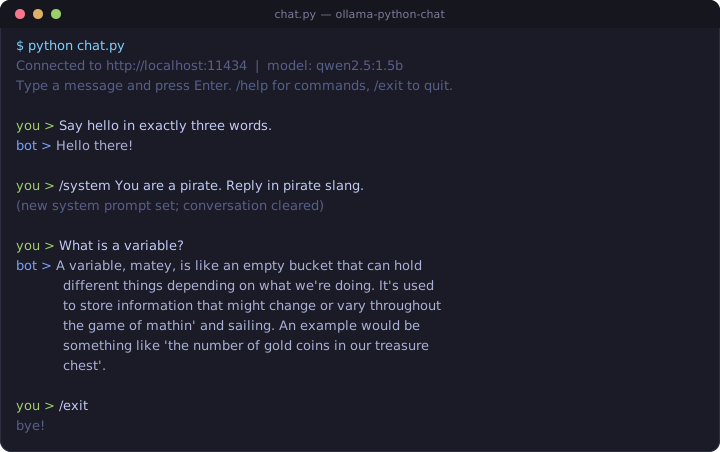
chat.py — one /system command swaps the model's entire persona mid-conversation. That is the demo.Get the scripts
Every file is heavily commented to explain what it does — chat.py plus three ready-made example personas in system_prompts/. Standard-library Python only, so there is nothing to pip install.
Verify the download (optional)
# Windows (PowerShell)
Get-FileHash ollama-python-chat.zip -Algorithm SHA256

# macOS
shasum -a 256 -c ollama-python-chat.zip.sha256

# Linux
sha256sum -c ollama-python-chat.zip.sha256
1 Install Ollama
Ollama is a free model runtime for macOS, Windows and Linux. Download and run the installer; it starts a small local server in the background at http://localhost:11434. That server is what our script talks to — on your machine, over your own loopback, no account required.
You may not need a separate install. AnythingLLM Desktop bundles Ollama and serves it on the same port 11434 while the app is open — so if AnythingLLM is running, chat.py can often connect straight to it with nothing else to install. Just skip to Part 3 and run the script; if it can't connect, install Ollama below (it runs on the same port and the two coexist fine). Prefer a server that runs even when AnythingLLM is closed? Install standalone Ollama. Note LM Studio is different — it serves a separate OpenAI-style API on another port, so point this script at Ollama, not LM Studio.
2 Pull a model (once)
Download a small chat model. This step needs internet the first time; afterwards the model is cached locally and everything runs offline.
ollama pull qwen2.5:3b     # ~2 GB, runs on 8 GB RAM — a good demo default
# ollama pull qwen2.5:7b   # sharper, if you have 16 GB RAM
ollama list                # confirm it's there
On a CPU-only machine a small model answers in a few seconds — perfect for a demo, not a frontier chatbot. Smaller = snappier.
3 Check Python, then run
You need Python 3.8 or newer. Almost every machine already has it.
python --version      # or: python3 --version

# Windows: right-click the .zip -> "Extract All", then open the folder
# macOS: double-click the .zip.  Linux: unzip ollama-python-chat.zip
cd ollama-python-chat

python chat.py        # or: python3 chat.py
Type a message and press Enter. The reply streams back as the model generates it. Type/help for commands, /exit to quit. That's the whole thing running.
4 The demo: change the system prompt
This is the moment worth building the lab around. Launch straight into one of the included personas:
python chat.py --system system_prompts/tutor.txt
python chat.py --system system_prompts/socratic.txt
python chat.py --system system_prompts/quiz-master.txt
Or swap the persona live, mid-conversation, without restarting:
you > /system You are a pirate. Answer everything in pirate slang.
(new system prompt set; conversation cleared)

you > explain what a variable is
bot > Arr, a variable be a treasure chest with a name...
Same model, one new sentence of instruction, completely different behavior. Have students write their own system prompt and watch what it does — that is the lesson.
5 Read the code with the class
chat.py is deliberately short and commented line-by-line. Walk through the three ideas that make it a chatbot:
- Messages + roles. The conversation is a Python list of
{"role": ..., "content": ...}dictionaries — onesystemmessage, thenuserandassistantturns. Show the list growing on screen and the "memory" mystery evaporates. - The model has no memory. We resend the whole list every turn; thatis the conversation history. Nothing is stored on the model's side.
- Streaming. Ollama returns the answer as many small JSON chunks; we print each one the instant it arrives, which is why the text appears to type itself.
/system <text> set a new system prompt (clears the chat) ·/reset forget the chat, keep the prompt ·/model <name> switch to another pulled model ·/help · /exit.
6 Where to take it next
- Add documents (RAG). Want it to answer from your readings instead of the model's memory? Step up to thesecure classroom AI assistant guide — AnythingLLM + Ollama, no code.
- Point it at one shared machine. Run Ollama on a single classroom box and have everyone's script target it with
--host http://<that-machine-ip>:11434. - Talk security. Because you can see the system prompt in the code, you can show why putting secrets in it is a bad idea — a natural bridge to the Day 2 prompt-injection and system-prompt-leakage material (OWASP LLM01 / LLM07).
The win here is that everything runs locally. Keep it that way: don't paste real student records or PII into the chat, and if you host on a shared machine, keep it on the classroom LAN rather than the open internet.